


PNG to JPG on Mac: conversion and white backgrounds
Updated:
Short answer
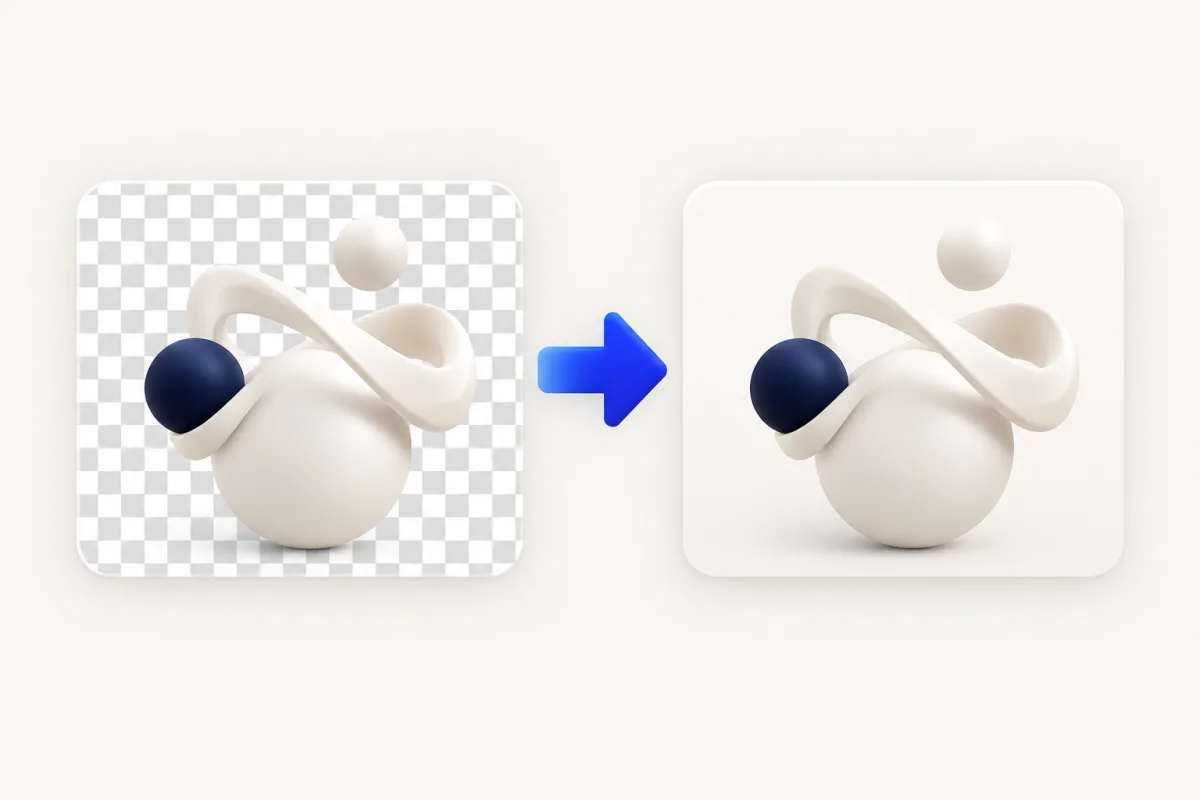
To convert PNG to JPG on Mac, open the image in Preview, choose File > Export, and select JPEG. Save a new copy and inspect the background. For a repeated Finder workflow, drag the PNG with Yuzu Drag running, tap ⇧ for Convert, and drop on JPG. Yuzu places transparent pixels on white. Keep the PNG when a logo or cutout needs transparency.
This conversion is useful when a form specifically accepts JPG or a recipient cannot use the PNG. It is less useful when your main goal is preserving sharp interface text or a transparent graphic. Decide what the destination needs before changing the format.
Use Preview first
Apple's Preview conversion guide covers exporting an image to JPEG. JPG and JPEG name the same image format; a receiving site's wording may use either extension.
- In Finder, open the PNG with Preview.
- Check the picture's edges and background before exporting.
- Choose File > Export.
- Select JPEG in the Format menu.
- Adjust the available quality control for the intended use.
- Save with a new name or in a separate destination.
- Reopen the result and check it against the source.
If JPEG is not visible, Apple's instructions note that holding Option while opening the Format menu can reveal additional formats. Do not overwrite your only source while experimenting. Start another export from the PNG if the first JPG is unsuitable, rather than repeatedly exporting the already converted JPG.
For a picture that these built-in controls handle well, there is no need to install another app. Preview also lets you look closely at a single export before deciding whether to convert the rest of a set.
Convert with Yuzu Drag
Yuzu's relevant fact is PNG-to-JPG conversion through native image support. Native decoder and encoder availability determines whether a particular file can be processed on your Mac.
- Run Yuzu Drag and locate the PNG in Finder.
- Begin dragging the file and keep the drag active.
- Tap ⇧ to open Convert.
- Drop on JPG.
- Open the new image and compare it with the PNG.
Conversion creates a new file, leaving the original in place. If the expected choice is unavailable or conversion fails, first confirm that the source really opens as an image. A .png extension alone does not prove that the file contains valid PNG data.
Transparency needs a deliberate choice
PNG can contain transparent pixels; JPEG cannot. When you convert transparent PNG files with Yuzu, it composites those pixels onto white before encoding the JPG. This also affects partly transparent edges. Review pale lettering and shadows against that white background. Keep the PNG if you need to place the graphic on several different backgrounds.
A logo that looked fine against a dark website may show an unwanted rectangle when converted. If the recipient needs the logo to sit on different backgrounds, keep PNG or ask whether another accepted format supports that requirement. Do not convert just because JPG is familiar.
For a website form that insists on JPG, prepare the intended background in an image editor if necessary, then review the exported copy. Keep the transparent original for future uses. A correct-looking thumbnail is not enough: open the delivered file against the background where it will actually appear.
Photos and screenshots need different checks
A photograph stored as PNG and a screenshot of small text can respond differently to JPEG encoding. Check the parts that matter to your recipient. For a photograph, inspect gradients, faces and textured areas. For a screenshot, zoom in on small lettering, straight edges and colored icons.
Conversion does not promise a smaller file. Compare the actual size if an upload limit is the reason for the change. Pixel dimensions are a separate requirement: a file can be within a byte limit and still be too wide for a form. Read the destination's instructions before converting a full folder.
If the image contains confidential text, examine the visible content before sending. Format conversion is not an instruction to hide or remove that information. Keep the original and the delivery copy clearly separated so that later edits start from the source.
Review a batch before sending it
Try one representative PNG first. Include an image with transparency if the set contains transparent graphics; testing only an opaque photo would miss the main risk. Compare the source and output at the intended viewing size, then inspect details more closely.
Once that result is acceptable, select the remaining compatible PNG files and repeat the drag, ⇧, JPG workflow. Check the resulting files rather than assuming that a successful first conversion proves the entire set is suitable. Mixed sources may contain different backgrounds or unusually fine text.
For batch PNG to JPG work, include both an opaque photo and a transparent graphic in your first test. PNG to JPEG conversion is mainly a compatibility choice, not a substitute for image compression. Start another export from the PNG if the quality is unsuitable; re-encoding a JPG can add visible artifacts without fixing the original problem.
Related image tasks
Use the image tools hub to distinguish format conversion from resizing and compression. The HEIC to JPG guide covers phone-photo inputs, while JPG to PDF covers assembling delivery pictures into a document. Download Yuzu Drag if repeated Finder conversions fit your workflow. Keep Preview for occasional exports that benefit from inspecting one image at a time.
Browse all conversion guides for other source formats.
FAQ
Can a JPG keep a PNG's transparent background?
No. JPEG does not support transparency. Inspect the background in the exported image and keep the PNG if transparency is required.
Is changing .png to .jpg enough?
No. Use an export or conversion operation to encode a new image. Renaming the extension does not convert the file.