


Stays on your Mac
Capture, editing, copying and saving run on your Mac. macOS asks for Screen Recording at first setup.
 Yuzu ShotBeta · v0.1.6
Capture part of your screen. Add arrows, numbers and text. Then save it or share it.
macOS 14 or later · Apple silicon & Intel
Yuzu Shot 2026-10-24 at 09.41.00.pngUse Tab and the arrow keys, or press a tool’s letter. Press ⌘S to see the save name. This is a browser demo. Nothing is uploaded.
Browser demo · tools and save preview only
Saved to DownloadsYuzu Shot 2026-10-24 at 09.41.00.png
Tool keys: C V R F O L A T B N P E I. Then ⌘S.
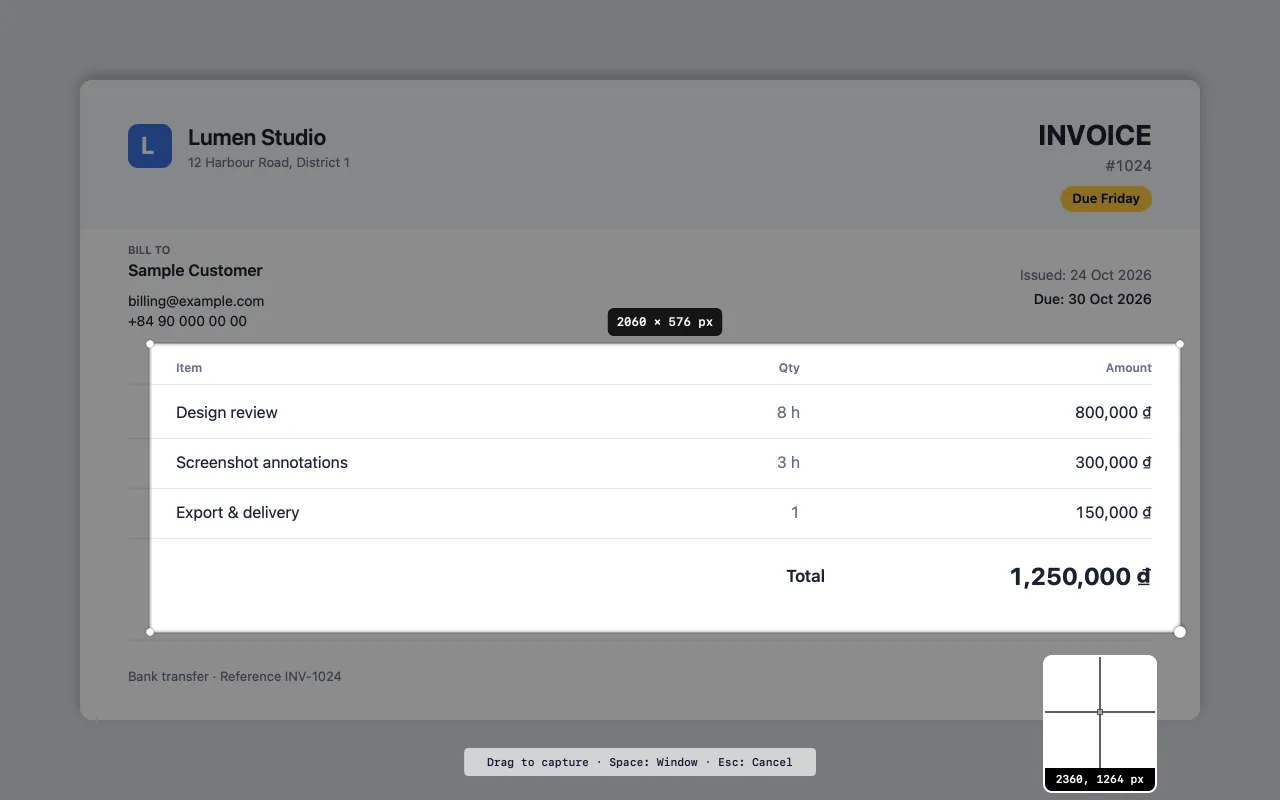
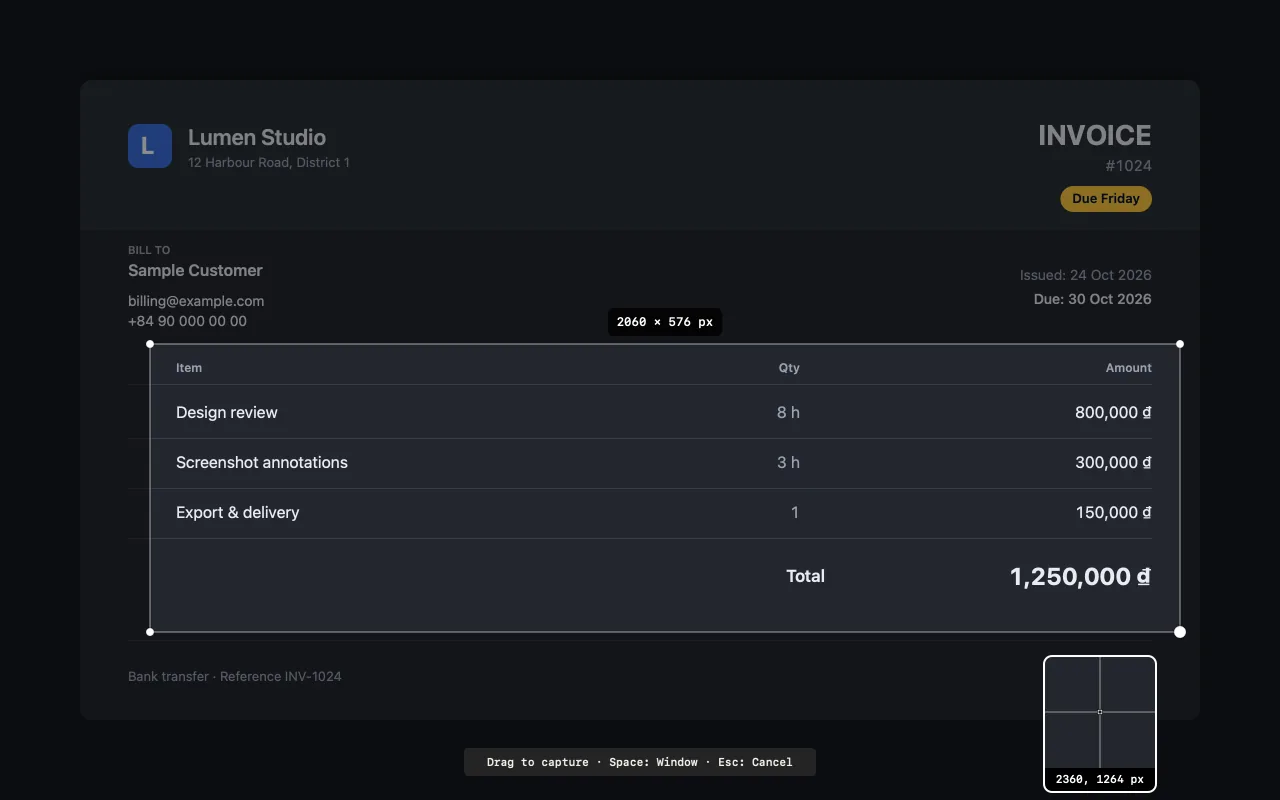
Press ⌘⇧4 for an area, ⌘⇧5 for a window, or ⌘⇧3 for the full screen. Press Space to switch between area and window.
These are also the macOS screenshot keys. Setup shows you how to turn those off.
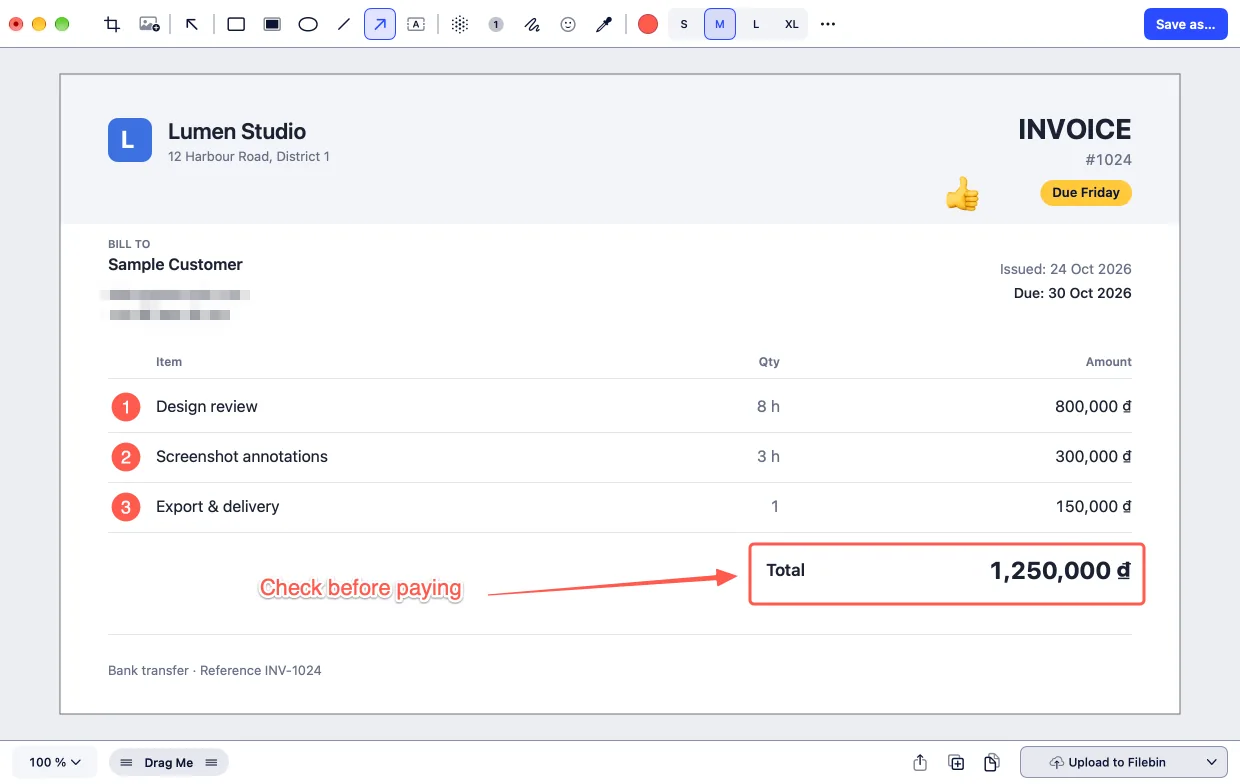
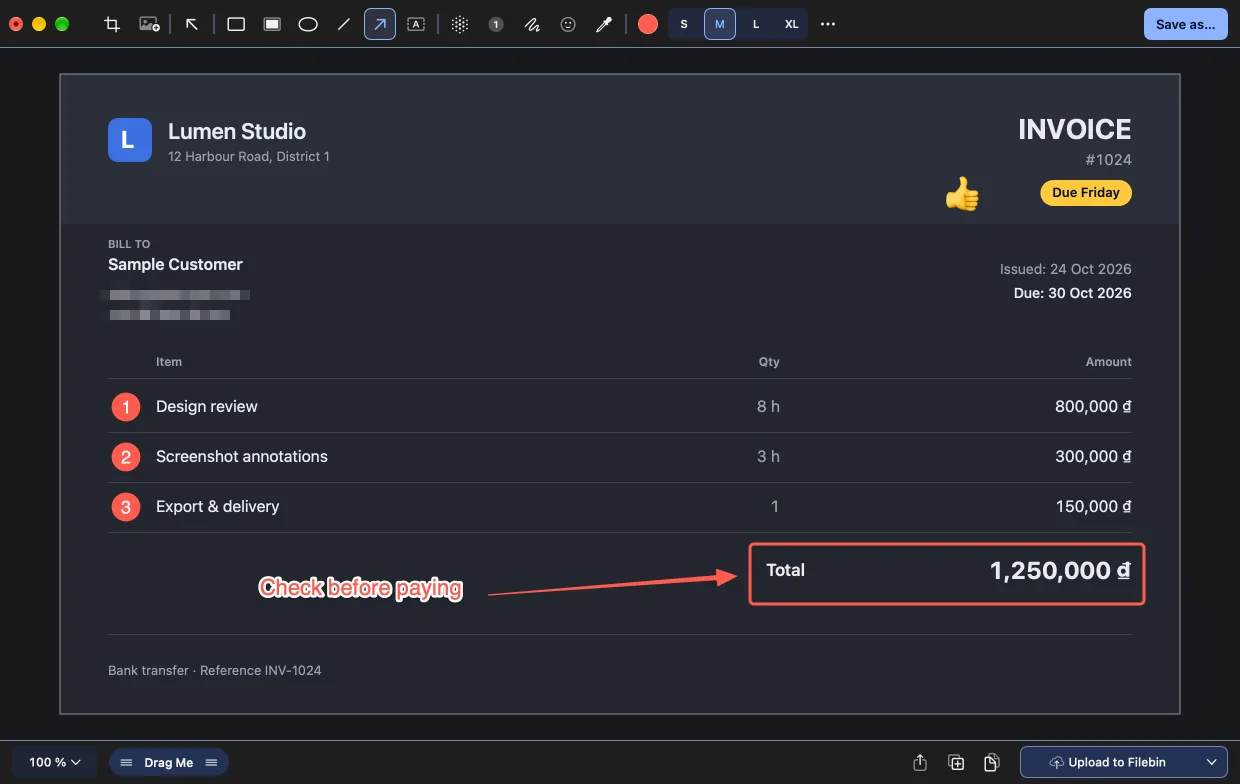
Add arrows, boxes, numbers, text and emoji. Cover an email or a phone number with mosaic. Each tool has a one-letter key.
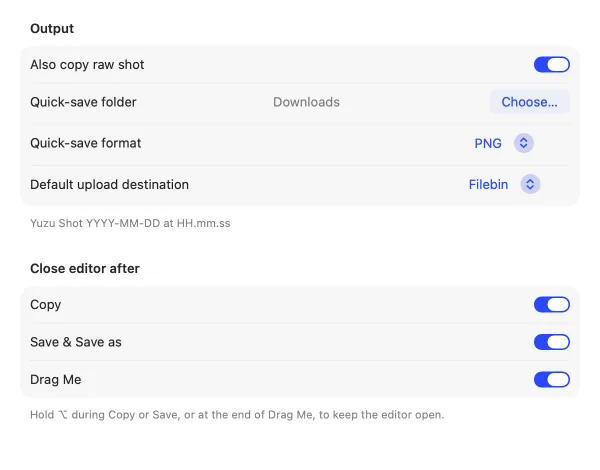
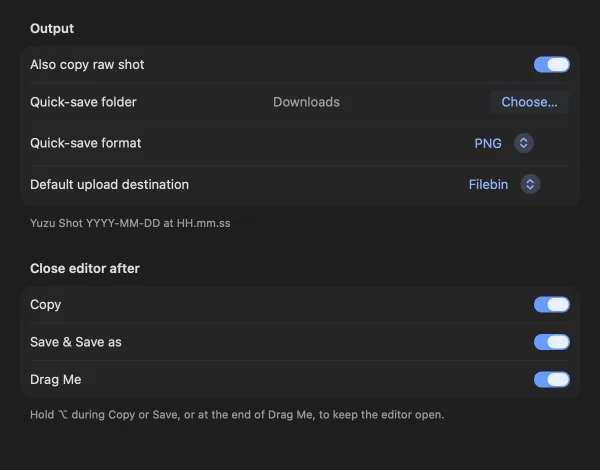
Right after capture, the shot is on your clipboard. ⌘S saves it to Downloads as PNG. ⌘⇧S lets you pick PNG, JPEG, HEIC or WebP. Drag Me drops it into another app.
Choose Open Image in Yuzu Shot… from the menu bar. In Finder, right-click an image and choose Annotate in Yuzu Shot. Yuzu Drag can send images here too.
Capture, editing, copying and saving run on your Mac. macOS asks for Screen Recording at first setup.
Upload sends a shot to R2 or Filebin only when you choose it. Upload settings are shared with other Yuzu apps. Update checks also use the network.
These are the defaults. Change or turn off the capture keys in Settings › Capture & Shortcuts.
| Action | Key |
|---|---|
| Capture an area | ⌘⇧4 |
| Capture a window | ⌘⇧5 |
| Capture the full screen | ⌘⇧3 |
| Switch area and window | Space |
| Pick a tool | V A T B N… |
| Copy | ⌘C |
| Save to Downloads | ⌘S |
| Save as… | ⌘⇧S |
| Duplicate selection | ⌘D |
Apple silicon and Intel Macs with macOS 14 or later.
macOS needs this permission for screenshots. Yuzu Shot asks at first setup. macOS may ask again each month.
Both use ⌘⇧3, ⌘⇧4 and ⌘⇧5. Turn off the macOS keys, or pick other keys in Yuzu Shot settings.
Each shot goes to your clipboard. ⌘S saves it to Downloads. You can choose another folder in Settings.
Only when you press Upload. It sends the shot to R2 or Filebin.
Yes. In Yuzu Drag, choose Annotate in Yuzu Shot to open an image here.
Yuzu Shot is a separate Mac app. It is in beta.
macOS 14 or later · Apple silicon & Intel