


Batch resize and compress images on Mac
Updated:
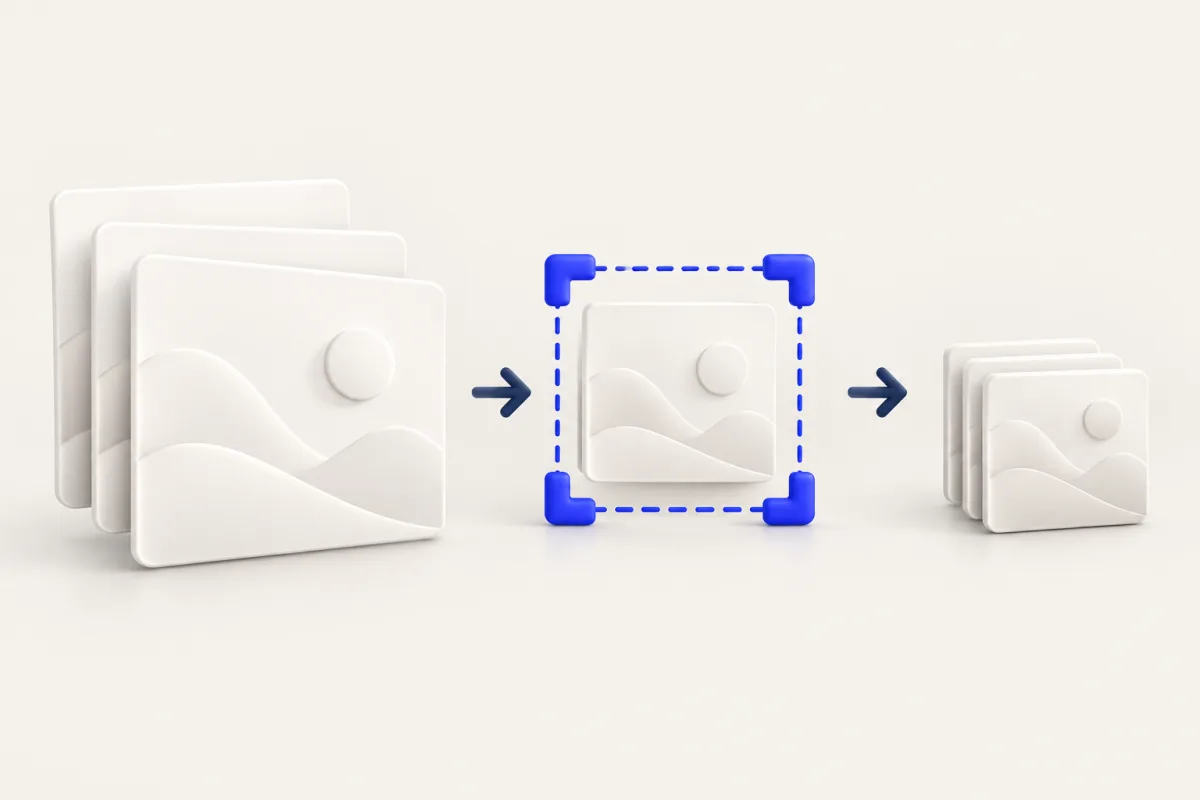
Batch image resize and compress: Mac workflow
To batch resize and compress images on Mac, reduce their pixel dimensions first, then compress the resized copies. Preview can handle a small batch. Yuzu Drag can save the same operations as an ordered chain so you can reuse the settings without setting up each step again.
Shortcut note: These steps use the default drag shortcuts. While holding the files, briefly press and release ⌘ for Tools; tap it again for Actions. ⇧ opens Convert. If you changed the shortcuts in Yuzu, use your configured keys instead.
Keep the original collection separate from delivery copies. A smaller image is suitable for an email or website, but it may no longer have enough detail for another use. Choose the delivery requirement before choosing settings.
Built-in macOS method: Preview
Make copies of the images in a new Finder folder before changing a batch. Preview can save changes to open images, so that preparation is important.
- Select the copied images in Finder and open them together in Preview.
- Show the thumbnail sidebar and select the thumbnails you want to process.
- Choose Tools > Adjust Size.
- Choose pixel dimensions appropriate for the destination and keep proportional scaling enabled.
- Apply the change and save the working copies.
- Export with an appropriate quality setting when the chosen format provides one, then check the resulting files.
Test the process with a few images first. A mixed selection of portrait and landscape photographs needs attention: setting both width and height without preserving proportions can distort a subject. Using a proportional size rule is safer when the source dimensions vary.
Preview is useful when you already have the files open and do not need a reusable sequence. For frequent jobs, Shortcuts can also organize image-processing actions into a repeatable workflow. Review its save destination carefully so the outputs are easy to distinguish from the source collection.
Choose dimensions and a quality rule
Write down the destination's requirements before starting. For a website, ask what pixel width the image actually needs. For a submission form, also check whether there is a byte limit. Resizing controls pixel dimensions; compression controls how those pixels are encoded. They solve related but different problems.
A percentage resize is convenient when all sources have similar dimensions. A dimension-based rule is more predictable when they do not. Avoid enlarging a small source just to make its dimensions match a larger photograph: that adds pixels without restoring missing detail.
Choose one difficult test image containing fine texture or small lettering. If that output looks acceptable, check a few simpler images too. Do not judge the batch only from a thumbnail or from whichever file happened to compress most dramatically.
Run the two tools in Yuzu Drag
For a first trial, run the operations separately so you understand their settings:
- Begin dragging compatible images in Finder.
- Tap ⌘ to open Tools, then drop on RESIZE.
- Choose Size or Percent. With Size, use W and H, keep Keep aspect ratio enabled, and consider Don't enlarge.
- Run the resize and inspect the output copies.
- Drag the resized copies, tap ⌘ for Tools again, and drop on COMPRESS.
- Choose Preset, Quality or Target size, run the job, and inspect the final images.
Preset compression offers High, Medium and Small. A quality percentage is an encoding choice, not a promised file-size reduction. Target size is useful when the destination specifies a byte budget, but some inputs cannot reach that budget with an acceptable result.
Save an ordered chain for repeat work
Yuzu's preset chain editor supports compatible image transforms in order. Build a two-step chain with resize first and compression second. Use Add Step to add each operation and Options to configure it. Review the order displayed in the editor rather than relying on the name you give the preset.
Choose a clear name that describes the delivery purpose. Review Destination as well: the chain can use output preferences or a chosen destination. Only final images are published by the chain, so you do not need to collect intermediate resize files by hand.
If you pin the saved preset to the appropriate Tools wheel, begin dragging compatible images, tap ⌘, and drop on the preset's wedge. A saved chain is not a promise that every image is compatible. If a preset is unavailable for a selection, separate the files and check whether the steps support those inputs. Animated GIF is excluded from resize and compression.
Check the whole delivery, not just one number
After processing, open a portrait image, a landscape image and the smallest source in the batch. Confirm the proportions, dimensions, readability and destination folder. Compare the count of expected outputs with the job results; compression may report an image as already optimized instead of saving another standalone copy.
Do not invent a single reduction percentage for the batch. Different subjects and source encodings produce different results even with identical settings. Keep a note of the settings that worked for your actual destination so the next run begins from a useful test rather than a guess.
Privacy and related tasks
These image transforms run locally and leave your original source files in place. Publishing the resulting images somewhere else is a separate decision. Review the copies before attaching them, especially if filenames or visible content identify a person or client.
Use the target-size compression guide when a byte limit is the main constraint. Browse the image tools hub for other image tasks, or Download Yuzu Drag to try the workflow on your Mac.
Browse all Yuzu tools for the complete task index.
FAQ
Should I resize or compress first?
Resize first when the recipient needs fewer pixels. Compress the resized image so the final encoding works on the dimensions you intend to deliver.
Can I reuse the same steps?
Yuzu Drag can save compatible image transforms as an ordered preset chain. Check the options and destination before reusing it on a new batch.