


PDF to JPG on Mac: export one page or the whole file
Updated:
Short answer
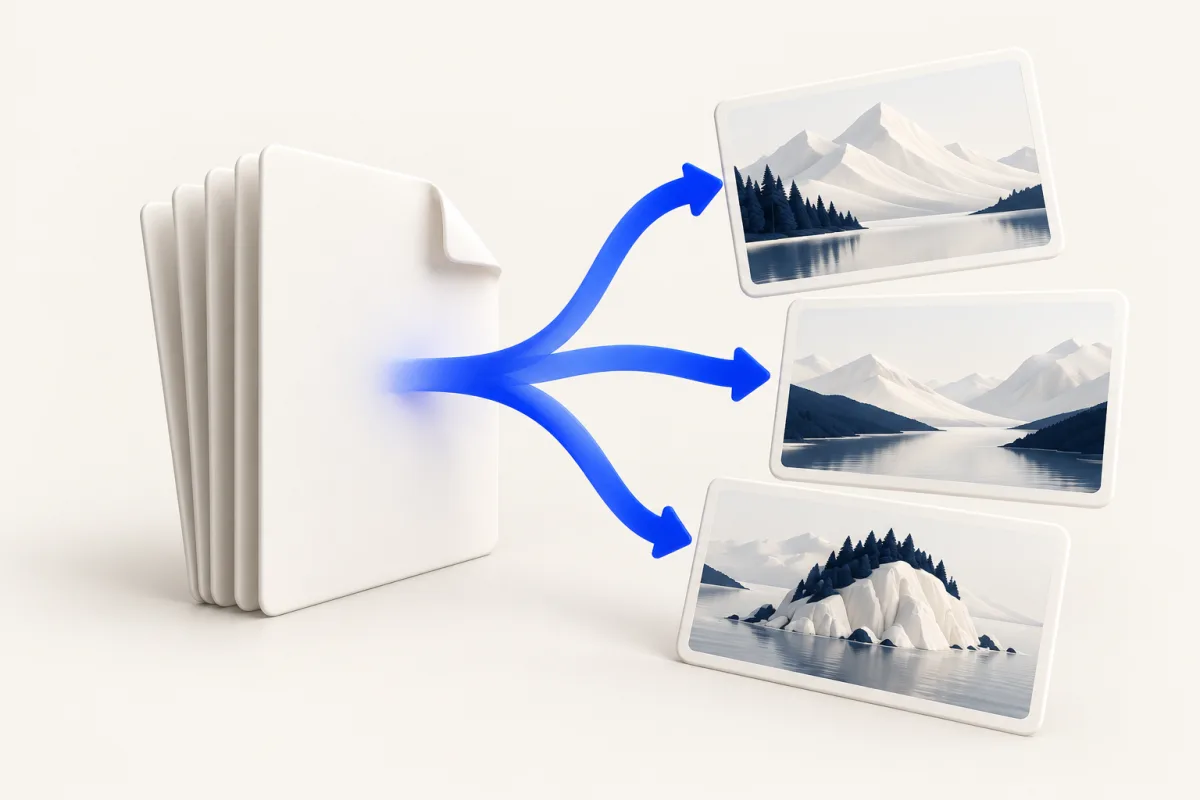
To convert PDF to JPG on Mac, open the PDF in Preview, select a page, and choose File > Export with JPEG as the format. Repeat for the pages you need. To convert multiple PDF pages to JPG with Yuzu Drag, drag the PDF, tap ⇧ for Convert, and drop on JPG. Yuzu creates a folder containing one image per page, rendering at up to 300 DPI with a 16-megapixel limit per image.
Use this when a recipient needs a picture rather than a document, such as a page illustration for a presentation. Keep the PDF as your source. A JPG represents a page visually; it does not keep the document's selectable text, clickable links or interactive fields as those same document features.
Export a page in Preview first
Preview is included with macOS. Apple's format-conversion instructions explain the export format menu. For a document, choose the intended page before exporting, and check the resulting image rather than assuming the whole document was converted.
- Open the PDF in Preview.
- Choose View > Thumbnails if the page sidebar is hidden.
- Select the page you need and confirm it in the main view.
- Choose File > Export, then JPEG in the Format menu.
- Review the available quality and resolution controls.
- Choose a distinct filename and save the image.
- Reopen it and check that it contains the intended page.
For another page, return to the PDF and repeat the export with a different name. This manual route is useful for a single cover or illustration. Do not describe Preview's ordinary Export command as a guaranteed whole-document batch operation. Selecting multiple thumbnails is not a reason to skip checking which pages actually became pictures.
Render the document with Yuzu Drag
Leave Yuzu Drag running and locate the source PDF in Finder. Work from a copy you are authorized to open and use.
- Begin dragging the PDF.
- Keep the drag active and tap ⇧ to show Convert.
- Move onto JPG and drop.
- Wait for the operation to finish.
- Open the new output folder and compare its numbered JPG files with the PDF's page count.
- Open the first, last and any detail-heavy pages before sharing the set.
The operation renders PDF pages as images into one output folder per document. Numbered filenames follow the page sequence. Rendering uses up to 300 DPI; larger pages are scaled down to fit a 16-megapixel limit. Visible annotations are included on a white background. Check the smallest labels and diagrams before using the pictures in a presentation or handout.
Rendering pages versus extracting pictures
A page with a heading, a photograph and a footer becomes one rendered picture. The export does not recover the photographer's original file from inside the document. If you need the original photograph for further editing, obtain it from its source rather than treating a page rendering as that original.
Likewise, a scanned page remains a picture of the scanned content. Converting the file format does not repair blur or create editable words. For a slide deck, a page image may be exactly what you need; for editing a paragraph, it is the wrong kind of output.
Keep the original PDF when document behavior matters. A link printed on the page may remain visible in the JPG, but the image does not preserve the PDF link object. Check the recipient's requirements before replacing a required PDF submission with pictures.
Inspect a representative result
Choose a document containing both ordinary text and a detailed diagram. This describes a useful test selection, not a completed benchmark. After rendering, compare the image with the corresponding page in Preview.
Check the smallest text you expect someone to read. Inspect thin diagram lines, page edges and colored annotations. JPEG encoding can affect fine detail, so do not judge the result only from a thumbnail. A picture that looks acceptable at phone size may be unsuitable for a large printed handout.
Count the outputs and verify their sequence before importing them into another app. Keep each converted document's results separate while reviewing; mixing two documents' page pictures can make a numbering mistake difficult to notice.
For PDF to JPEG in Preview, export a detailed page first and compare it with the source at the intended viewing size. For Yuzu's whole-document route, check the numbered files in the output folder, including the last page. A folder with the right file count can still contain content you did not intend to share, such as visible annotations.
File size and delivery checks
Rendering a document can produce more total bytes than the source PDF. A PDF containing text can be compact, while a picture needs pixels for the entire page. There is no fixed size saving to expect from this conversion.
Check the receiving app's pixel and attachment limits separately. If it asks for one image, decide which page is required rather than uploading a random first result. Keep page names clear and open the exact files you plan to send.
Browse PDF tools for document tasks, or use JPG to PDF when you need pictures assembled into a document. The conversion index lists other format guides. Download Yuzu Drag for the repeated drag workflow, or stay with Preview for an occasional page export.
FAQ
Does Yuzu export only the first PDF page?
No. The PDF-to-JPG operation renders one image per PDF page. Check that the number of output images matches the document.
Does this recover the original embedded photos?
No. A page-image export renders the page, including its text and layout. It is different from extracting original embedded images.