


Split PDF on Mac into individual page files
Updated:
Split PDF: Mac options
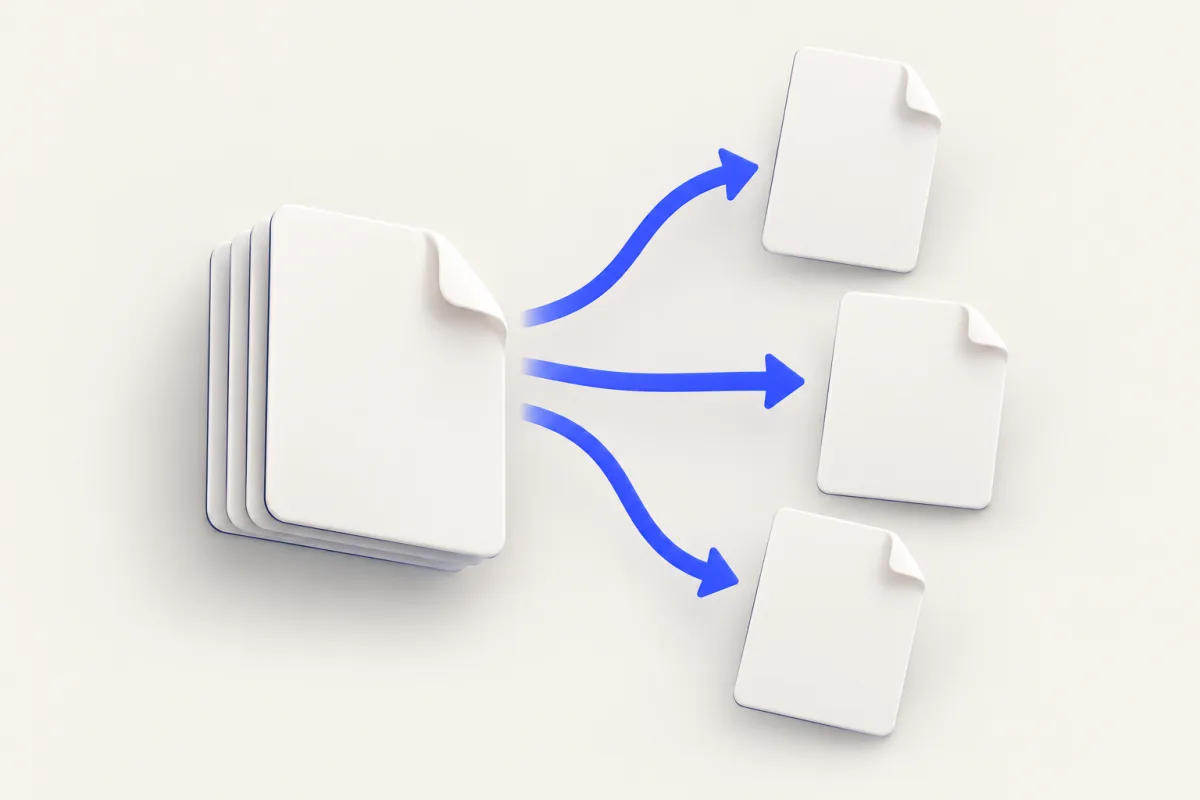
To split PDF on Mac, use Preview to extract selected pages or Yuzu Drag to make one file per page. In Preview, select page thumbnails and drag them to Finder. In Yuzu, drag the document, tap ⌘ for Tools, and drop on SPLIT. It creates an output folder containing the page files and leaves the source unchanged.
Shortcut note: These steps use the default drag shortcuts. While holding the files, briefly press and release ⌘ for Tools; tap it again for Actions. ⇧ opens Convert. If you changed the shortcuts in Yuzu, use your configured keys instead.
Choose the method by the result you need. Extracting a few pages from a large document is different from separating the entire document into page-sized files. You do not need a full-document split just to send one receipt.
Extract selected pages with Preview
Preview is already on your Mac. Its thumbnail sidebar lets you choose the pages before creating a new document, which makes it a good fit for an excerpt.
- Open the source document in Preview.
- Choose View, then Thumbnails.
- Select the thumbnails for the pages you want. Use Command-click for separate pages and Shift-click for a continuous selection.
- Drag the selected thumbnails to a Finder folder or the desktop.
- Open the new document and confirm which pages it contains.
Dragging a selection of thumbnails can produce an excerpt containing those pages together. If you need a separate document for each page, drag one thumbnail at a time. That is reasonable for two pages, but becomes repetitive for a long document.
Do not delete pages from the source simply to create an excerpt unless you intended to edit that source. Keeping the original intact makes it easier to correct an omitted page or create another excerpt later. Save and name the extracted copy clearly before sharing it.
Split the whole document with Yuzu Drag
Yuzu's SPLIT tool has a specific job: produce one document per input page. There is no page-range picker in this operation. It is useful when the next system expects individual page files rather than one packet.
- Install Yuzu from the download page and keep the app running.
- Select the document in Finder and begin dragging it.
- Tap ⌘ to open Tools while the drag remains active.
- Drop on the SPLIT wedge.
- Open the resulting output folder and inspect the page files.
The wheel's other groups use different taps: ⇧ opens Convert, and another ⌘ tap from Tools opens Actions. SPLIT is a Tools choice. If you pass it while cycling groups, return to the correct group before releasing the files.
You can select several compatible documents and split them in one job. Each source is processed into its own output folder. Keep an eye on which folder belongs to which input instead of collecting all page files into a single unnamed pile.
Understand the output names
For a source named report.pdf, Split uses report as the starting folder name. Inside that folder, page names use the source stem followed by a hyphen and a page number, such as report-1.pdf. The numbering is padded to the number of digits needed for the document's total page count. A twelve-page input therefore uses names such as report-01.pdf and report-12.pdf.
These are naming examples from the operation's behavior, not claims about a processed sample. Your output preferences and existing files can affect the final folder location and name. Do not assume that an older folder with a similar name contains the newest results.
For an initial check, compare the number of output page files with the page count shown in Preview. Open the first and last output, then a page in the middle. Confirm that the numbering matches the document order and that the page content is readable.
A practical review before distribution
Splitting changes how a recipient encounters a document. A page that made sense after a cover sheet may be confusing on its own. Before sending individual files, decide whether each recipient needs a note identifying the source document or the purpose of that page.
Keep the output folder together until the handoff is complete. If you rename page files manually, retain enough of the page sequence to distinguish similar pages. Avoid assigning names based only on visual similarity; forms and statements can have repeated layouts with different details.
Inspect the destination you are sharing from. A cloud-synced folder may send the split outputs to a service even though the split itself is a local operation. Choose the working folder according to the sensitivity of the document, not only convenience.
Limits and troubleshooting
An unreadable or protected source needs attention before splitting. Open it directly in Preview and confirm that you have permission to access its pages. A filename extension alone does not establish that the underlying data is a valid document.
A split produces separate files, not smaller versions of the whole document. If a portal imposes a size limit on each page file, check those outputs individually. Do not assume each page will have an equal size: a scanned page and a page containing mostly text can be quite different.
Use Preview when you need a selected excerpt or manual control. Use Yuzu when you need the whole input separated into individual pages. The document tools hub and guides index cover other document tasks without treating them as part of Split.
Related links
FAQ
Does Split remove pages from the original?
No. Yuzu Drag writes individual page documents into a new output folder and leaves the original in place.
Can I extract only selected pages?
Use Preview to select and drag the page thumbnails you need. Yuzu Drag's Split tool creates one document for each page in the input.