


Merge PDF on Mac in the right page order
Updated:
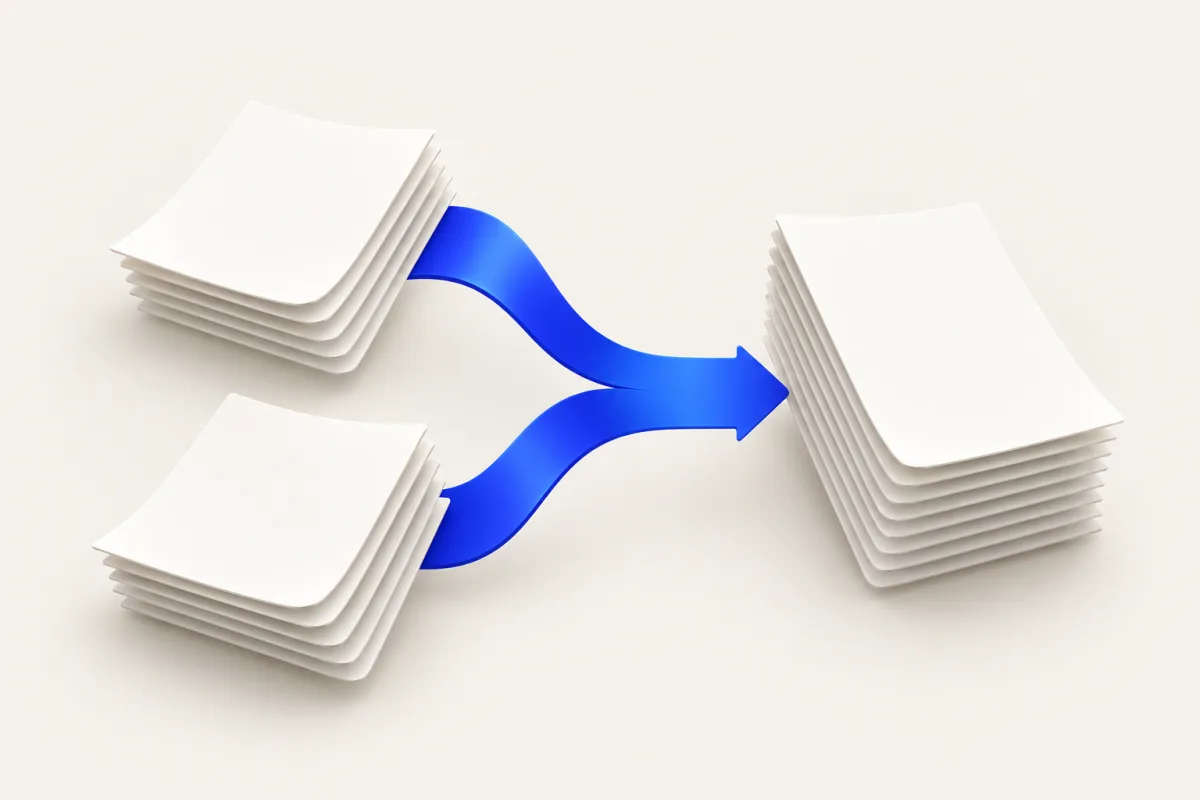
Merge PDF: Mac options
To merge PDF on Mac, use Preview when you need to choose pages or arrange them by hand. Show thumbnails in both documents and drag pages into the destination. Yuzu Drag combines whole files: drag the selection, tap ⌘ for Tools, and drop on MERGE. It creates a new document without changing the inputs; check the resulting page order.
Shortcut note: These steps use the default drag shortcuts. While holding the files, briefly press and release ⌘ for Tools; tap it again for Actions. ⇧ opens Convert. If you changed the shortcuts in Yuzu, use your configured keys instead.
The important part is the reading order. A document can open correctly while still putting an appendix before its cover sheet. Check that before sending the result.
Combine pages with Preview first
Preview is included with macOS and gives you direct control over individual pages. Work on a duplicate of the destination document if you need to keep its original state. Preview can save changes to the file you are editing, so do not treat it as an automatic export-only workflow.
- Open the documents in Preview.
- Choose View, then Thumbnails, so each window shows its page list.
- Select the page thumbnails you want in the source document. Select all thumbnails if you want the whole document.
- Drag those thumbnails into the destination sidebar. Watch the insertion position rather than dropping on the large page view.
- Move thumbnails within the destination sidebar if the order needs adjustment.
- Save the combined document under a separate name and reopen it.
This method suits a packet where you need page three from one document and two pages from another. It also gives you a chance to remove a duplicate cover before saving. For a small, occasional job, there may be no reason to install another app.
Combine whole files with Yuzu Drag
Use Yuzu when the files are already complete and you want one repeated drag gesture instead of opening each document separately. Install it from the download page, then leave the menu-bar app running.
- Put the intended input documents together in Finder so you can select the right set.
- Begin dragging the selected files.
- Tap ⌘ to show Tools while keeping the drag active.
- Drop the selection on the MERGE wedge.
- Wait for processing to finish, then open the new document and check it.
For reference, ⇧ opens Convert; ⌘ opens Tools; another tap of ⌘ opens Actions. MERGE belongs to Tools. Do not drop onto a conversion choice when you mean to combine documents.
Yuzu merges files in the order supplied by the selection. It does not provide an editorial page-arranging step during this operation. Finder's visible arrangement is not a substitute for checking the actual output. If a particular sequence is essential and the supplied selection order does not match it, use Preview's thumbnail sidebar to arrange the pages explicitly.
A packet example to check yourself
Suppose you have a cover document, a report, and an appendix. These names describe an example workflow, not a measured test result. The useful check is whether the new document reads cover, report, then appendix, with each input's internal page order preserved.
Before the merge, note each document's page count. Afterward, compare the combined count with their sum. Then inspect the first and last page of each section. This catches missing documents, accidental duplicate inputs, and the wrong file version more quickly than reading only the first page.
For multiple inputs, Yuzu uses Merged.pdf as the starting output name. Existing-file handling and your output preferences can affect where the finished file appears and whether a numbered name is needed. Identify the new file by its actual path rather than assuming it replaced an older merged packet.
What to review before sending
Page order is only one part of a useful merge review. Open the result in Preview and check the following:
- The expected number of pages is present.
- Portrait and landscape pages are readable at their intended orientation.
- A section begins where you expect it to begin.
- Important links and navigation still behave as needed.
- The recipient can open the finished file from the location you intend to share.
Do not assume a merge preserves a document's signing or submission status. If the packet is for a legal, financial, or official process, follow that process's requirements for the final combined document. Keep the separate source files until the recipient accepts the result.
Limits and troubleshooting
A file that cannot be read as a document cannot be merged just because its name ends in .pdf. Open a problematic input separately to distinguish an unreadable file from a mistake in the selection. If it is protected, obtain an authorized readable copy rather than repeatedly retrying the batch.
Merge is not compression and it is not a page-selection editor. Combining several documents may make the result too large for a submission portal. Check the final file against that portal's limit; do not assume that fewer attachments means fewer bytes. Our document tools hub explains the separate tasks, while the guides index helps you choose the next step.
For a one-off packet with irregular page order, stay with Preview. For repeated whole-document combinations, Yuzu's drag workflow avoids opening each input first. In either case, preserve the sources and review the result before it becomes the copy someone else relies on.
Related links
FAQ
Can Preview combine documents without another app?
Yes. Show thumbnails, drag pages from one document into another, then save a separate copy if you want to preserve the starting document.
Does Yuzu Drag change the source documents?
Merge creates a new document and leaves the source files in place. Check the output order before sharing it.