


Compress PDF on Mac and check readability
Updated:
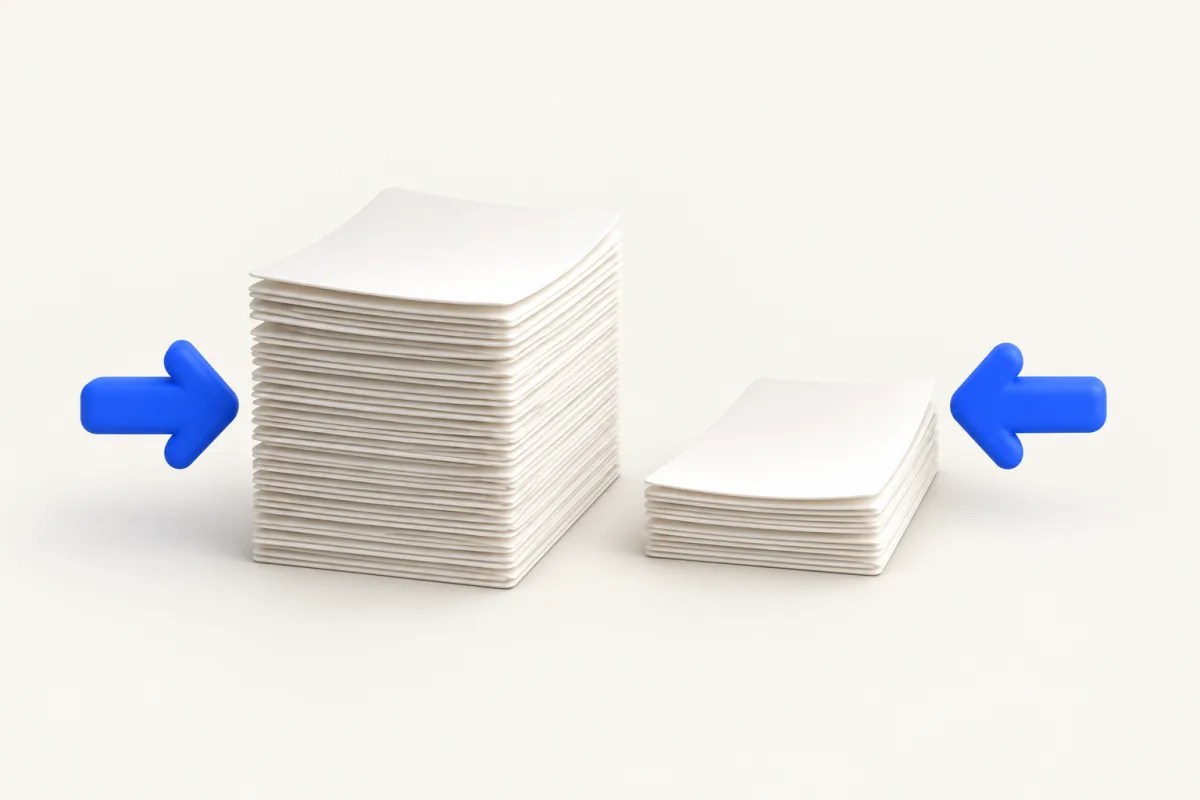
Compress PDF: Mac options
To compress PDF on Mac, try Preview's built-in Reduce File Size export filter. Yuzu Drag uses the same system filter through a Finder drag workflow and saves a copy only when it is smaller. Both methods can reduce image detail, so check small text and scans before sending the result.
Shortcut note: These steps use the default drag shortcuts. While holding the files, briefly press and release ⌘ for Tools; tap it again for Actions. ⇧ opens Convert. If you changed the shortcuts in Yuzu, use your configured keys instead.
Keep the original document. A smaller attachment is useful only if the recipient can still read it, and not every document has much data that compression can remove.
Built-in macOS method: Preview
- Open the document in Preview.
- Choose File > Export.
- Keep the format as PDF.
- In Quartz Filter, choose Reduce File Size.
- Save with a distinct name or in another folder.
- Reopen the exported copy, inspect the pages, and check its size in Finder.
Use Export rather than saving over a working original. If the document contains scans, zoom in on small print, signatures and faint pencil marks. Also inspect photographs and diagrams. A document may look fine as a page thumbnail but lose important detail when viewed at a useful reading size.
Preview is a sensible starting point for one document. If you regularly receive several PDFs to prepare for delivery, a repeated Finder workflow may be more convenient. Do not switch tools expecting different compression settings here: Yuzu's PDF compressor uses the system filter too.
If your Preview version offers other optimization options, review those separately rather than assuming they are the same as Reduce File Size. For a repeatable comparison, note the actual option you selected and use the same source document.
Compress a document in Yuzu Drag
- Select the PDF in Finder and begin dragging it.
- Tap ⌘ to open Tools.
- Drop on the COMPRESS wedge.
- Wait for processing to finish.
- Open the output copy and compare it with the source.
Unlike image compression, this operation does not open a target-size or quality editor. It uses the system Reduce File Size filter. You cannot specify a byte budget or choose an arbitrary quality percentage through the PDF tool.
When a smaller candidate is available, Yuzu saves a compressed copy and leaves the original in place. If the candidate is not smaller, the job can report Already optimized instead of saving another file. That message means the attempted filter did not improve the size, not that the document could never be made smaller by changing its content or source export.
Why scans and text documents behave differently
A scanned page is largely a picture of a page. Reducing the data in those embedded pictures can reduce file size, but it can also make lettering and fine marks less clear. That is why inspection matters most for scans with tiny print, low contrast or handwritten notes.
A document generated from a text editor may already be quite compact. Applying an image-focused reduction filter may make little difference. Likewise, a scan that has already been reduced may not have much room left without losing useful detail.
Do not use page count as a reliable prediction of compression. A short document containing detailed scans can be larger than a long text-only document. Look at the actual content, the saved byte count and the reading quality instead of expecting the same reduction from each file.
Check a real submission copy
Suppose an upload portal rejects a document because it exceeds its size limit. Keep the original, compress a copy, then check that copy in Finder. If it is below the limit, open several representative pages before uploading it.
Check the first and last pages, a page containing small print and any page with a stamp or signature. Confirm that the page count and orientation are still what you expect. For a document with forms or interactive content, test the features you rely on rather than assuming that a successful file write preserves the whole workflow.
No measured reduction is supplied because the result depends on the actual document. If the copy is still too large, return to the source application when possible and review how the document was exported. Do not repeatedly compress the output in the hope of a predictable additional reduction.
Batches, privacy and limits
You can select compatible PDFs together and use the same drag workflow. Review the job results per document rather than assuming that each selection produced a new output. A mixed batch can include documents that shrink and others reported as already optimized.
PDF compression runs locally. That avoids sending the source to an online compressor for this operation, but it does not change the confidentiality of the document's visible contents. Send only the intended output and follow your normal sharing policy.
Compression is not a substitute for checking a sensitive document. Reduced file size does not mean private details have been removed. It also does not establish that an official submission meets a portal's requirements for signed or interactive documents.
Browse the PDF tools hub for related document tasks. For broader delivery planning, see the guides index. Download Yuzu Drag to try local PDF compression from Finder.
FAQ
Why did my PDF barely get smaller?
Results depend on the contents. A document with already-efficient text or previously reduced images may have little room to shrink.
Does Yuzu offer a PDF target-size control?
No. PDF compression uses the system Reduce File Size filter, without the image compressor's target-byte controls. Check the actual result against your upload limit.