


WAV to M4A on Mac: create an AAC listening copy
Updated:
Short answer
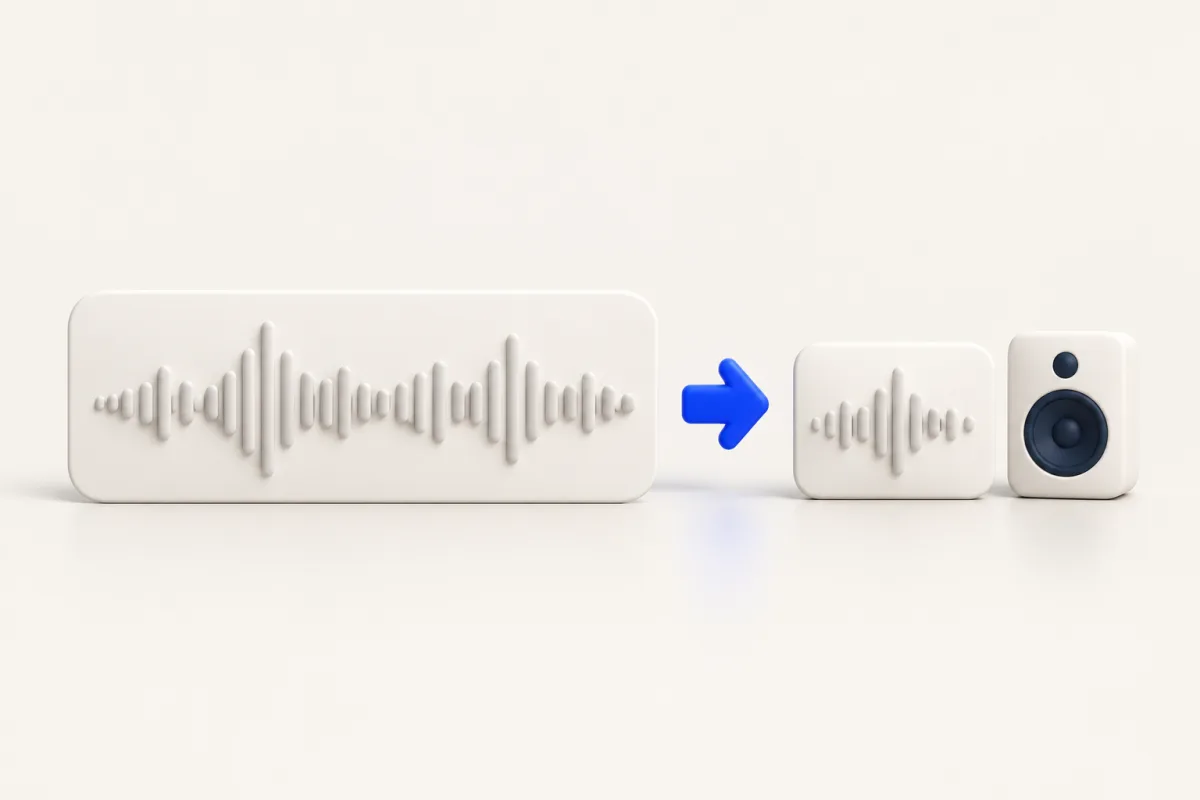
To convert WAV to M4A on Mac, try QuickTime Player's Audio Only export if it opens your recording. For repeated jobs, drag the WAV file with Yuzu Drag running, tap ⇧ for Convert, and drop on M4A. Yuzu creates a local AAC listening copy and leaves the WAV source in place. Check duration and playback before sharing; WAV to AAC conversion is not an archival replacement.
A WAV recording is often used as an editing master. Make a smaller delivery copy for listening or sharing, but keep the recording that your editing project references. Replacing project media with a newly encoded delivery file can make later edits less flexible.
Try the built-in route first
QuickTime Player is worth trying for a WAV recording it can open. Use File > Export As > Audio Only to create an audio delivery copy. Check the available command on your Mac and inspect the saved file rather than assuming that opening a recording also proves every export is supported.
If a built-in application can open and export your source, follow this review process:
- Play the original and check that the recording is complete.
- Select an audio export command if the application offers it.
- Save a separate copy in the required delivery format.
- Open the exported file and listen to both speech and quieter sections.
- Confirm the intended recipient or listening application accepts it.
An application that refuses the source has not necessarily found a corrupt file; it may lack a decoder for its particular encoding. Conversely, a familiar extension does not rule out a truncated download. Check the source in the application that produced it when possible. Renaming the extension will not decode or transcode audio.
Convert with Yuzu Drag
- Start Yuzu Drag and find the source file in Finder.
- Begin dragging the WAV file while keeping the drag active.
- Tap ⇧ to open Convert.
- Move to the M4A wedge and drop.
- Wait for the job to finish and open the new audio file.
- Keep the source until you have checked the new copy.
This conversion uses the native Apple M4A export route. It is different from the audio compression tool, which exposes bitrate presets. Do not assume that a plain Convert operation selected a particular bitrate merely because a compression setting is available elsewhere in the app.
The conversion runs locally and creates a new file; it does not require an online conversion service. The original stays available for another export. If the M4A choice is missing or the operation reports a read error, check your Mac's native decoding support and the source file before retrying the same batch.
Check what you are giving up
AAC is a lossy codec. A useful delivery copy may sound acceptable for its listening purpose, but that does not make it an identical substitute for the source. Listen on the headphones or speakers your audience will use, particularly where background sound, music, or overlapping voices are important.
Compare the beginning and end, then check a section with clear transients or consonants. Confirm duration and audible channels. A file that opens is not sufficient evidence that the entire recording exported correctly. If the recipient needs a master for further editing, send the original in an accepted format instead of assuming a listening copy is suitable.
Do not assume artwork, tags, or other library information will transfer exactly. Inspect the result in the target player if titles and ordering matter. Keep a clear relationship between source and output filenames, and avoid mixing reviewed copies with earlier attempts that you have not checked.
Batch conversion
Begin with one representative source from the same recorder or collection. After it converts and plays properly, select the related WAV files in Finder and repeat the drag, ⇧, and M4A drop. Keep sources from different applications in separate test groups if they behave differently.
Compare the output count with the selection. Check more than one recording when durations or recording settings vary. Leave space for the new copies while retaining your source collection, and avoid moving originals during conversion. When a particular file fails, isolate that source instead of concluding that all files of the same format are unsupported.
When you need a smaller file
If a destination rejects the result for size, use an explicit bitrate-based compression workflow. Repeatedly converting the same delivery copy can add encoding damage without solving the actual requirement. Return to the original for another attempt and check the destination's byte limit before you start.
Read the audio compression guide for preset selection. A lower bitrate is a quality trade-off, not a promise that a long recording will fit any attachment limit.
Check a batch WAV conversion
Try QuickTime audio export for one recording before adding another tool to your workflow. For batch WAV conversion with Yuzu, test a file from each recorder or project first. Listen to quiet sections and overlapping voices, compare duration and channels, and check the recipient's player. Return to the WAV source if you need another export rather than re-encoding an already compressed copy.
Related help
Browse audio tools and the tools hub for available workflows. Download Yuzu Drag if local conversion during a Finder drag fits the job; keep the built-in export when it already works for you.
FAQ
Is this an archival replacement for the source?
No. Yuzu M4A output uses lossy AAC. Keep the original when you need a source for later editing or archiving.
Why might conversion fail on my Mac?
Input support depends on installed native audio decoders and the actual recording, not only its extension.